
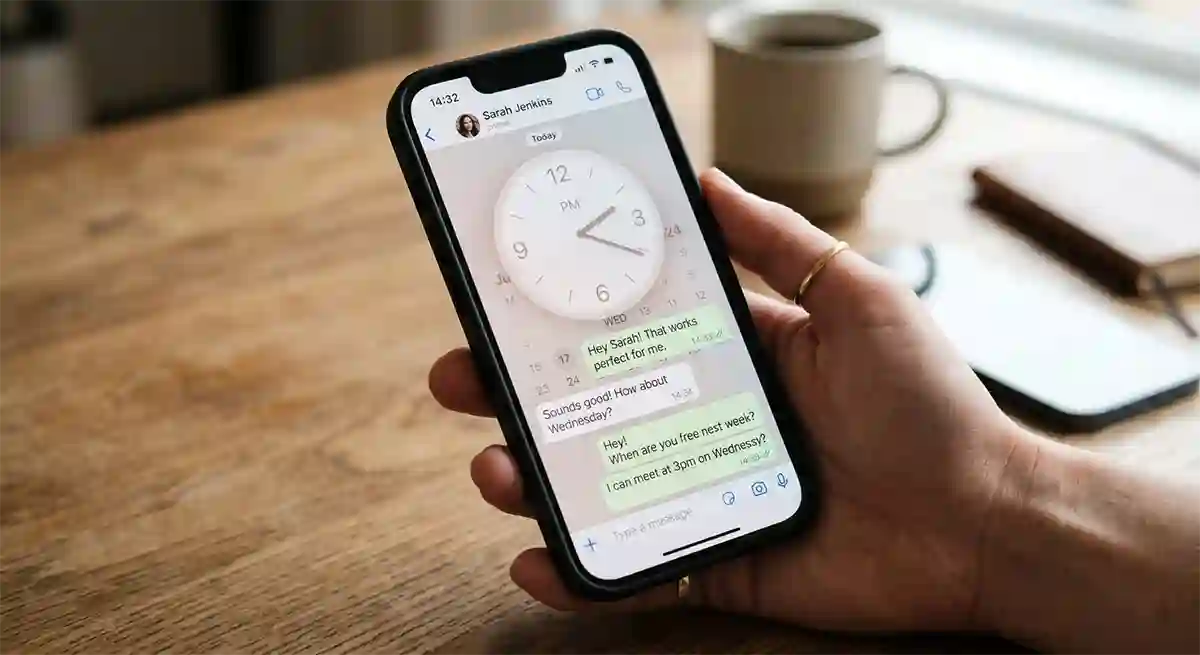
How to Schedule WhatsApp Messages Without Any Third-Party App
There is a specific kind of frustration that comes with remembering an important message at the wrong time. You think of a birthday wish at midnight, a follow-up at 11 PM, or a morning reminder for a colleague at a moment when sending it would genuinely bother someone. You make a mental note, and then life moves on, and the moment passes entirely. WhatsApp is used by over two billion people daily, and almost all of them have been in exactly this situation. Find in this article how to schedule WhatsApp messages without any third-party apps.
The logical solution is message scheduling. The problem is that WhatsApp still has no built-in schedule button for regular personal chats. What most guides skip over is that you do not actually need a third-party app to solve this. Your phone already has the tools. This article walks through every method that works, device by device, so you can schedule WhatsApp messages cleanly and without handing your chat data to an app you found on the Play Store.
Why WhatsApp Still Does Not Schedule Messages Natively
This question comes up often, and the honest answer is that Meta has been slow to prioritize it. WhatsApp Channels, the broadcast feature, does allow admins to schedule posts. PCMag reported in February 2026 that WhatsApp is testing a built-in scheduled messages feature in its TestFlight beta, where the flow involves tapping a clock icon, picking a date and time, and having WhatsApp deliver it automatically. GuruSup, that feature has no confirmed public release date yet.
For now, personal chat scheduling does not exist natively inside the app. What does exist is something equally useful: built-in automation tools on both iPhone and Android that handle this job without requiring you to install anything new.
How to Schedule WhatsApp Messages on iPhone Using Shortcuts
The cleanest no-download solution available right now lives on every iPhone running iOS 13 or later. The Shortcuts app comes pre-installed and has a WhatsApp action built directly into it. Here is the full process.
Open the Shortcuts app and tap the Automation tab at the bottom of the screen. Tap the plus icon in the top right corner and select New Automation. Choose Time of Day as the trigger, then set the exact date and time you want the message to go out. On the next screen, tap Add Action and search for WhatsApp in the search bar. Select Send Message from the results.
Tap the faded Message placeholder to write your text, then tap the Recipient field to choose your contact. Tap Next, and here is the step most people miss: turn off the toggle that says Ask Before Running. If you leave that on, your phone will prompt you for confirmation before sending, which defeats the purpose. Tap Done, and your message is set.
This method does require your iPhone to be powered on and connected to the internet at the scheduled time for the automation to execute. GuruSup. For a one-off message like a birthday wish or a morning reminder, this works reliably well. For something that needs to fire on a strict schedule regardless of your phone’s state, a different approach is needed, but for most personal use cases, this covers everything.
Read more: 10 Practical Ways to Use AI in Daily Work
How to Schedule WhatsApp Messages on Android Without Extra Apps
Android is more open than iOS by design, which is usually an advantage. For WhatsApp scheduling without third-party apps, however, the picture is slightly more limited. WhatsApp does not currently offer a native scheduling feature, but the built-in capabilities available on Android devices can be used to automate messages.
The most reliable built-in route on Android is through Google Assistant Routines. Open the Google app or say “Hey Google,” then navigate to Settings and find Routines. Create a new routine, set a time-based trigger for when you want the message sent, and add an action to open WhatsApp and send a message to a specific contact. The exact steps vary slightly across Android versions and manufacturers, but the path is consistently within the Google or Assistant settings on your device.
Samsung devices running One UI have an additional option through Bixby Routines. Open Settings, search for Bixby Routines, and create a time-triggered automation that opens WhatsApp to the relevant contact. This is particularly reliable on Galaxy phones because Bixby has deeper system access than third-party tools typically do.
Using native automation tools keeps everything within your device, offering better privacy and data protection, no access to your chat history by external apps, reduced battery usage, and no risk of account restrictions. Message Valley: These are real considerations that often get glossed over when articles simply recommend downloading SKEDit and moving on.
Using WhatsApp Business App’s Built-In Scheduling Features
If you use WhatsApp for work, the free WhatsApp Business app offers two built-in automated message features that do not require any external tool at all. They are not the same as scheduling a specific message to a specific person at a specific time, but for professional use cases, they cover a lot of ground.
Open the WhatsApp Business App and go to Settings, then Business Tools, where you can select Away Message or Greeting Message and compose your message with a schedule based on your operating hours. Wappbiz The Away Message fires automatically when someone contacts you outside the hours you have set. The Greeting Message sends automatically to anyone who messages you for the first time or after 14 days of inactivity. Both go out without any manual effort on your part and without touching a single third-party tool.
For small business owners, freelancers, or anyone managing professional WhatsApp communication, switching to the Business app and configuring these two features takes about five minutes and immediately makes your responses look more organized and intentional.
A Few Things Worth Knowing Before You Start
Your phone needs to be on. Every device-based method described here depends on your phone being powered and connected to the internet at the time the message is supposed to be sent. This is the one genuine limitation of doing this without a third-party service, since paid scheduling platforms queue messages on their own servers rather than relying on your device.
The message goes out in your name. When Shortcuts or a Bixby Routine sends a WhatsApp message, it goes as a real message from your account, exactly as if you had typed and sent it yourself. There is no draft status, no pending indicator. Once the automation runs, the message is delivered.
You can only schedule one contact per automation. If you need to send the same message to multiple people, you will need to set up a separate routine for each contact. This is worth knowing upfront if you were hoping to schedule a group blast.
Learn more: 10 Best Chrome Extensions That Actually Save You Time Daily
Quick Method Comparison by Device
| Device | Built-In Tool | Setup Time | Reliability | Best For |
| iPhone (iOS 13+) | Apple Shortcuts | 3 to 5 minutes | Good, phone must be on | One-off messages, reminders |
| Android (Google) | Google Assistant Routines | 5 to 8 minutes | Good, device dependent | Morning check-ins, follow-ups |
| Samsung (One UI) | Bixby Routines | 5 minutes | Very good on Galaxy devices | Recurring professional messages |
| WhatsApp Business | Away and Greeting Messages | Under 5 minutes | Excellent, always-on | Business auto-replies |
Conclusion
Scheduling WhatsApp messages without a third-party app is genuinely possible, and the tools to do it are already sitting on your phone. iPhone users have the most straightforward path through the Shortcuts app, while Android users can work through Google Assistant or Bixby, depending on their device. For anyone using WhatsApp for business communication, the Business app’s built-in automation covers the most common professional scenarios without requiring anything extra at all. The only real prerequisite for all of this is knowing it exists, and now you do.