How to Save Contacts in Gmail Instead of iCloud on iPhone
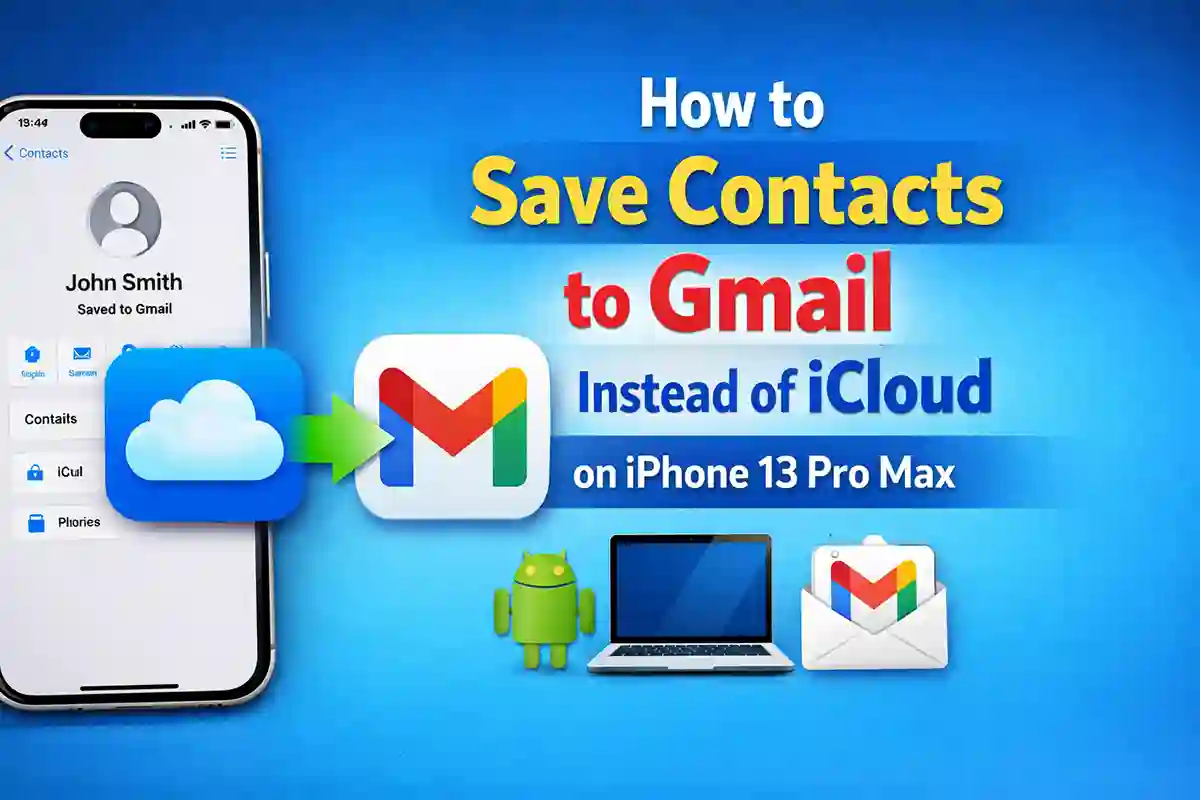
If you are using an iPhone, your contacts are usually saved in iCloud by default. But many people prefer saving contacts in Gmail instead of iCloud. Why? Because Gmail works smoothly with Android phones, laptops, and other devices. It also makes switching phones easier in the future. In this complete guide, I will explain everything in simple and clear words on how to save contacts in Gmail instead of iCloud on iPhone. By the end, your new contacts will be saved in Gmail, not iCloud.
Why Save Contacts in Gmail Instead of iCloud?
Before we start the steps, let’s quickly understand why many users prefer Gmail.
First, Gmail contacts sync easily across all devices. Whether you use Android, Windows, or Mac, your contacts stay updated.
Second, if you ever switch from iPhone to Android, your contacts are already saved in Google. No extra work needed.
Third, Google Contacts has powerful search and management tools that make it easy to organize large contact lists.
Now let’s move to the actual steps.
Learn more: How to Change Frame Rate of iPhone Camera
Step 1: Add Gmail Account to Your iPhone
If your Gmail account is not added to your iPhone, you need to add it first.
- Open Settings
- Tap Mail
- Tap Accounts
- Tap Add Account
- Select Google
- Sign in with your Gmail address and password
- Make sure the Contacts toggle is turned ON
- Tap Save
Now your Gmail account is connected to your iPhone.
Step 2: Set Gmail as the Default Contact Account
This is the most important step. If you skip this, new contacts will still save to iCloud.
Follow these steps carefully:
- Open Settings
- Scroll down and tap Contacts
- Tap Default Account
- Select your Gmail account
That’s it. From now on, all new contacts will automatically save to Gmail instead of iCloud.
Step 3: Check Where Your Contacts Are Being Saved
If you want to confirm where a contact is stored:
- Open the Contacts app
- Open any contact
- Scroll down to the bottom
You will see whether it says iCloud or Gmail.
This helps you stay sure that everything is working correctly.
Step 4: Move Existing iCloud Contacts to Gmail
If you already have contacts saved in iCloud, you may want to move them to Gmail.
Option 1: Move Contacts One by One
- Open the Contacts app
- Select a contact saved in iCloud
- Tap Edit
- Scroll down and tap Move to Gmail
Repeat for other contacts if needed.
Option 2: Transfer All Contacts at Once (Faster Method)
If you have many contacts, the faster way is:
- Go to iCloud.com on a computer
- Export all contacts as a vCard file
- Go to contacts.google.com
- Import the vCard file into your Gmail account
This will move all your contacts to Gmail in one step.
Optional: Turn Off iCloud Contacts
After you confirm that your contacts are safely saved in Gmail, you can turn off iCloud contact syncing.
- Go to Settings
- Tap your name at the top
- Tap iCloud
- Turn off Contacts
Be careful. Make sure Gmail already has your contacts before turning this off.
Benefits of Using Gmail for Contacts
Saving contacts in Gmail gives you more flexibility. Your contacts sync automatically with your Google account. You can edit them from your phone, laptop, or even another device.
If you ever reset your phone or buy a new one, just sign in to Gmail, and all contacts will appear again.
This makes Gmail a smart and secure choice for long-term use.
Conclusion
So this is how to save contacts in Gmail instead of iCloud on iPhone. Changing the default contact account on your iPhone is very simple. You just need to add your Gmail account and set it as the default account in settings.
Once done, every new contact will be saved in Gmail automatically. It takes only a few minutes but saves you from future problems.